
IT Wiki
Your guide to Microsoft 365 at Ainos: sign-in, phone, email, collaboration, security. Concise, jargon-free.

Get started
Browse by topic
My Ainos laptop
Your work PC is provisioned, secured and kept up to date automatically by IT via Microsoft Intune. This page explains what runs in the background, what Company Portal is for on a PC, and the right reflexes in case of damage, loss or theft.
From the moment it's provisioned, your Ainos PC is registered in Windows Autopilot and then continuously managed by Microsoft Intune: security, updates, apps and compliance are all driven remotely by IT for the device's entire lifecycle. First-time setup is covered on I have a new device; the details of updates and compliance are on Updates & compliance.
⚙️ Managed by IT, silently
Encryption, antivirus, firewall, security updates, compliance: it all applies itself, with no action needed from you. → Details
🙋 What's still on you
Reasonable everyday use, restarting when an update asks for it, and taking care of the physical hardware (see below).
Every Ainos PC has a local administrator account whose password is generated and rotated automatically by Windows LAPS (Local Admin Password Solution), then stored securely in Intune. Nobody needs to remember it: if a technical intervention requires it, only IT can retrieve it, in a fully traceable way.
The Company Portal app (already installed) isn't just for phones: on PC, it acts as a dashboard for your device.
Compliance status
The Devices tab shows whether your PC is marked Compliant or Not compliant, and why.
Self-service apps
The Apps tab lists work software you can install without admin rights.
Support tied to your device
Contacting IT from the app automatically links your request to this specific PC.
🔒 Your data stays protected
The drive is encrypted with BitLocker: without your credentials, its contents are unreadable to whoever finds or steals the device. Reporting it quickly is still essential to cut off online access.
🎒 Transport
Use a padded sleeve or bag, even for a short trip. Never in an unprotected hold or stacked under other objects.
🌡️ Environment
Avoid direct heat, humidity, and placing a glass or bottle near the keyboard.
🔋 Power
Use the original or a certified charger. Avoid repeated full battery discharges.
🧽 Cleaning
Power off the device before cleaning it, using a dry or microfiber cloth — never spray any product directly onto it.
- Windows Autopilot overview Microsoft Learn
- Windows LAPS overview Microsoft Learn
- BitLocker drive encryption Microsoft Learn
Enrollment via Company Portal
iOS & Android Available in 2027
Step-by-step procedure to enroll a personal (BYOD) or work mobile device in Microsoft Intune via the Company Portal app.
Wi-Fi connection
Stable network required throughout the procedure.
Battery > 50%
Avoids interruption during MDM installation.
Microsoft 365 account
@domain.lu address + MFA configured.
No jailbreak
Modified devices are blocked by Intune policy.
⚠️ A prior request to Ainos IT is required before any enrollment. Once the request is approved, the device will be managed by Ainos IT (security policies, updates, access to organizational resources).
The enrollment method depends on the device type. This page (Company Portal) mainly covers mobile devices; work Windows PCs are pre-configured via Windows Autopilot.
| Device | Method | What you do |
|---|---|---|
| Work Windows PC | Autopilot + Intune (auto) | You sign in with your Ainos account: everything configures itself. → New PC |
| iPhone / iPad | Company Portal (MDM/BYOD) | Install Company Portal and follow the wizard (below). |
| Android | Company Portal (MDM/BYOD) | Install Company Portal and follow the wizard (below). |
| Personal phone (work apps) | BYOD (MAM) | Just the protected apps, without managing the phone. → BYOD |
The procedure is nearly identical on both systems. Select the tab matching your phone to display only the steps relevant to you.
Enrolling an iPhone or iPad in Microsoft Intune via the Company Portal app. First: install Intune Company Portal from the App Store, open the app, sign in with your prenom.nom@ainos.lu account, and approve MFA. Then follow the wizard.
prenom.nom@ainos.lu, tap Next, then enter your password and approve MFA (approval in Microsoft Authenticator).


Enrolling an Android device in Microsoft Intune via Company Portal (Android Enterprise — work profile). Compatible with Android 8.0+. Sign in with your prenom.nom@ainos.lu account.
prenom.nom@ainos.lu, then Next.Precise limits depending on the platform — a common question from BYOD users.
| Data / Action | iOS (BYOD) | Android Work Profile |
|---|---|---|
| Deployed work apps | Visible | Visible |
| Personal phone number | Not visible | Not visible |
| Personal photos / files | Not visible | Not visible |
| Installed personal apps | Not visible | Not visible |
| Force PIN rotation | Possible | Possible |
| Selective wipe (work data) | Possible | Possible |
| Full wipe (factory reset) | BYOD: No | BYOD: No |
| GPS location | No | No (BYOD) |
📵 Missing profile (iOS)
Wait 2 min then go to Settings → General → VPN & Device Management. If nothing appears, close and reopen Company Portal, then resume from step 5.
⚠️ "Device not compliant" (Android)
Check: Android ≥ 8.0, encryption enabled, lock code active. Fix these, then tap Check compliance again.
🔁 MFA authentication loop
Clear the cache (Android: Settings → Apps → Company Portal → Clear cache) or reinstall on iOS. Also check your license with IT.
♻️ "Device already enrolled"
The old registration blocks the new one. Contact IT to remove the old entry, then try again.
- Enroll a Windows device in Intune (Company Portal)learn.microsoft.com
- Enroll an iOS / iPadOS devicelearn.microsoft.com
- Enroll an Android device (work profile)learn.microsoft.com
- What happens after a device is enrolledlearn.microsoft.com
BYOD — Using your personal device
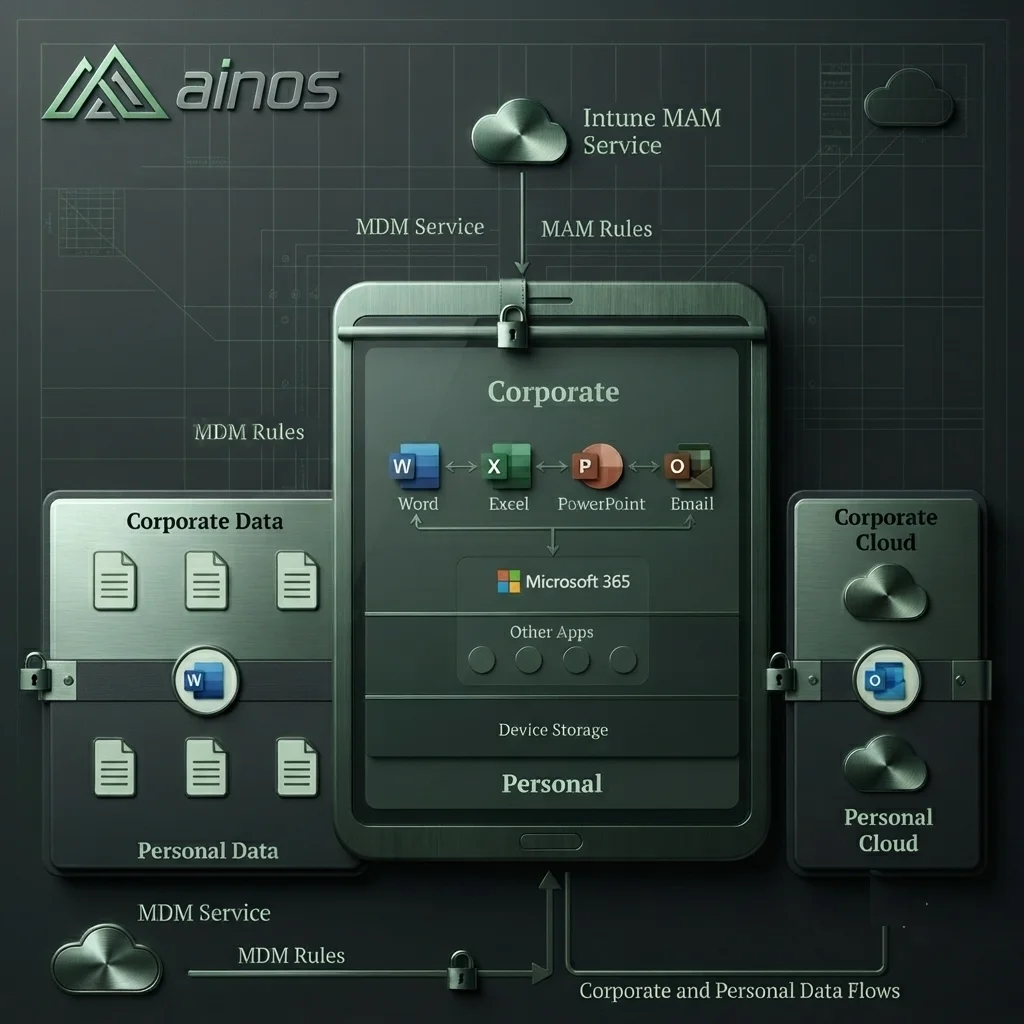
BYOD (Bring Your Own Device) lets you access your work emails and apps from your personal phone, without IT taking control of the device. Only Microsoft apps are protected: your photos, contacts and personal apps stay entirely private.
How the protection works (MAM)
MAM (Mobile Application Management) protects work applications and their data, without managing the whole device. Intune applies app protection policies: company data flows freely between managed apps (Outlook, Word, Excel, PowerPoint, OneDrive…) but stays walled off from your personal apps and storage.
Protected apps
The protection applies to Microsoft 365 applications: Outlook, Teams, OneDrive, Word, Excel, PowerPoint and other mobile Office apps. Your other applications are not affected.
Installing on iPhone / iPad
firstname.lastname@ainos.lu address then your password (and MFA verification if requested).Day to day — what you'll notice
Quick unlock
Open a Microsoft app → Face ID / fingerprint → immediate access. The PIN is asked again after 30 minutes of inactivity.
Copy/paste between Microsoft apps
Copy text from Outlook to Teams: allowed. Paste into a personal app (WhatsApp, personal Gmail): blocked.
Privacy preserved
Your photos, contacts and personal apps are never visible to or touched by IT. The company sees nothing of your personal use.
Restrictions to know
| Action | Behavior |
|---|---|
| Backing up work files | Forced to OneDrive (no local backup or personal iCloud/Google) |
| Printing work documents | Blocked |
| Screenshots in work apps | Blocked (iOS and Android) |
| Copy/paste to personal apps | Blocked |
Security — access rules
| Situation | Consequence |
|---|---|
| 5 consecutive wrong PIN attempts | Work data wiped only (personal photos/contacts untouched) |
| Jailbroken / rooted device | Access blocked |
| iOS older than version 18.0 iOS | Access blocked |
| Samsung device — Knox attestation failure Android | Access blocked (on compatible devices) |
| Device offline for 24 h | Access temporarily blocked (restored on reconnection) |
| Device offline for 90 days | Work data wiped |
| Account disabled / departure | Work data wiped |
BYOD (MAM) vs full enrollment (MDM)
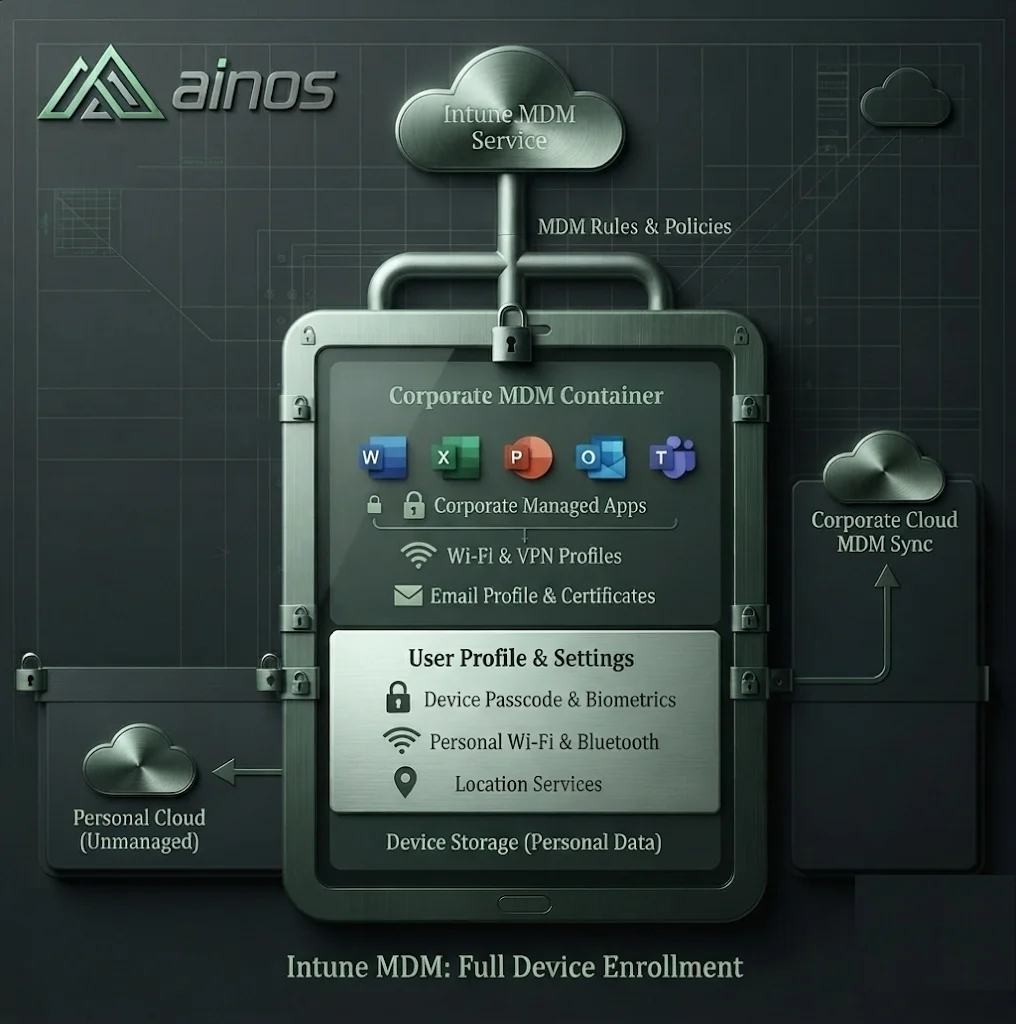
Ainos chose MAM mode (app protection) for BYOD, rather than full device enrollment (MDM). Here's why, from a user perspective:
| Aspect | BYOD / MAM (Ainos's choice) | MDM enrollment |
|---|---|---|
| Setup | Download Outlook → email → PIN (~5 min) | Company Portal → sign-in → enrollment → profile (~15-20 min) |
| Message shown | "PIN required for this app" | "This device is managed by Ainos S.A." |
| What IT controls | Work apps only | The whole device |
| What IT sees | Nothing personal | Installed apps, GPS location, model, phone number |
| In case of wipe | Selective: work apps removed, personal intact | Full: entire device wiped |
| Privacy | Fully preserved | Device fully visible to IT |
Special case: Windows
- Set up a personal device for work (overview)learn.microsoft.com
- iOS / iPadOS enrollment (BYOD)learn.microsoft.com
- Android enrollment — work profile (BYOD)learn.microsoft.com
Set up Outlook mobile
Install and connect the Microsoft Outlook app on a work or personal smartphone (BYOD). On a personal device, the app is protected by app protection policies (MAM).
On a personal smartphone, Outlook is a Microsoft app protected by app protection policies (MAM), without full device enrollment. The flow differs slightly:
| ✅ Allowed | 🚫 Blocked |
|---|---|
| Reading/sending work emails, calendar, contacts | Copy/paste to a personal app |
| Copy/paste between Microsoft apps (Outlook ↔ Teams) | Saving attachments locally (forced to OneDrive) |
| Face ID / fingerprint unlock | Forwarding to a personal mail account |
| Opening attachments in Microsoft apps | Access if device is jailbroken / rooted |
Outlook automatically sorts mail into two tabs: Focused (important messages) and Other. To move a message, open it → menu (•••) → Move to Other / Move to Focused, and choose "Always" for that sender.
Outlook mobile supports multiple accounts (usually only one Ainos work account is needed). To add one: Settings → Add Account → Add Email Account. Switch between accounts via the avatar in the top left. On a personal device, the work account stays protected by MAM policies, independently of your personal accounts.
| Symptom | Likely cause | Solution |
|---|---|---|
| Account won't sign in | Password changed, MFA not approved, or conditional access | Double-check the password, approve the request in Authenticator; see Conditional access |
| "Your organization protects its data" keeps looping | App protection (MAM) not finalized | Tap OK, relaunch Outlook, set the requested PIN. Details: BYOD (MAM) |
| Slow sync or missing emails | Weak network, app needs updating | Check the connection, update Outlook, pull to refresh; if needed remove and re-add the account |
| No email notifications | Notifications off (app or system) | Enable notifications in Outlook and in the phone's settings |
- Setting up an account in Outlook for iOS and Androidlearn.microsoft.com
- Manage Outlook for iOS/Android with Intune (App Protection)learn.microsoft.com
- Microsoft Outlook (mobile) helpsupport.microsoft.com
Email best practices
A few habits for more effective, safer emails: prefer cloud links over attachments, and correctly classify sensitive data.
Rather than attaching a copy of the file, share a link to the document stored in OneDrive or SharePoint (a "cloud attachment").
📎 Attachment (copy)
Everyone gets their own version → multiple versions, heavy email, scattered edits. Reserve this for external recipients.
🔗 OneDrive link (recommended)
Everyone works on the same file, always up to date, lighter email, access rights under control.
| 📎 Classic attachment | 🔗 OneDrive / SharePoint link | |
|---|---|---|
| Version | Frozen: everyone gets a copy that drifts apart | Single and up to date for everyone |
| Co-authoring | Not possible (manual merge) | Several people at once |
| Email size | Weighs down the mailbox (quota) | Light (just a link) |
| Access control | None once sent | Edit/Read rights, revocable |
| Field | For whom | When to use it |
|---|---|---|
| To | Recipients who need to act or reply | People directly concerned |
| Cc | For information, no action expected | Keep people posted without asking anything |
| Bcc | Recipients hidden from others | Sending to a large list (protects addresses); never to "spy" on a conversation |
📦 Attachment size
Beyond ~20–25 MB, sending may be refused. Prefer a OneDrive/SharePoint link (see above) for large files.
🖋️ Signature
A professional signature (name, role, Ainos) is set up in Outlook → Options → Signatures. Keep it simple: no heavy images.
🗂️ Sorting & rules
Create rules (Outlook → Rules) to sort automatically, and use Sweep for newsletters. A tidy inbox is faster to search.
🎣 Attachment caution
Never open an unexpected attachment. If in doubt: Security & phishing.
Classifying an email based on the confidentiality of its content helps protect it (encryption, restrictions) and prevent leaks.
| Label (example) | Use | Protection |
|---|---|---|
| Public | Non-sensitive information, shareable | None |
| Internal | Internal Ainos use | Marking, limited distribution |
| Confidential | Sensitive business data | Encryption, transfer restrictions |
| Highly confidential | Critical / regulated data | Strong encryption, very restricted access |
- Microsoft Outlook help & trainingsupport.microsoft.com
- Recognize phishing emailssupport.microsoft.com
Share an Outlook calendar
Make your calendar visible to a colleague — then, on the recipient side, display the calendar shared with you. The steps are described for Classic Outlook and the new Outlook.
1️⃣ You share
Right-click your calendar → Sharing Permissions…, add the colleague.
2️⃣ You set the permission level
From "busy / free" to full editing — you stay in control of the access level.
3️⃣ They accept
The recipient gets an invitation email; the calendar is added to their My Calendars list.
The level you choose determines exactly what the recipient sees of your agenda:
| Level | What the recipient sees (or can do) |
|---|---|
| None | Nothing — the calendar stays invisible. |
| Can view when I'm busy | Your availability only (busy / free), with no details. Recommended by default |
| Can view titles and locations | Availability plus the subject and location of each appointment. |
| Can view all details | The full content: subject, attendees, appointment body, notes. |
| Can edit | See everything and edit: create, move, delete events. |
| Delegate new Outlook | Can edit and send / respond to invitations on your behalf — reserve this for assistants. |
⏳ The calendar doesn't appear
Wait a few minutes, then refresh (F9 in Classic Outlook). Check that the invitation was accepted.
✏️ Change or remove access
Reopen Sharing Permissions…, select the person, change the level or click Remove.
🌐 External sharing
Calendar sharing outside the organization is restricted by default: submit an IT support request.
- Share an Outlook calendar with other peoplesupport.microsoft.com
- Open another person's Exchange calendarsupport.microsoft.com
Manage a team space
For team owners and managers: the rules in place, who grants which access, access reviews, guests and confidential content. Just want to share a file? → Share a file.
What is set up at Ainos Official Ainos rules — Oct 2026
| Rule | What it means for you |
|---|---|
| "Anyone" links (no sign-in) don't exist | Every link asks the person to sign in. |
| The suggested link is "People you choose", with the "Can view" permission | Your members switch to "Can edit" only when the person must write. |
| No password on a link | You can set an expiration date instead, and sometimes block downloads. |
| OneDrive can't be shared outside | Anything an external person must see lives in a team space. |
| SharePoint and Teams: sharing only with guests already created by IT | An unknown address is refused. |
| Only IT creates guests, and only for approved partner companies | The request goes through "Invite an external guest"; you are the one who approves it. |
| A guest cannot reshare | They can't give access to what they don't own. |
| Access given on the site, on a file or through a link (since 1 October 2026) expires after 180 days | You get an e-mail before it expires so you can extend it. A guest who is a member of the team doesn't expire: they stay as long as you confirm them in the quarterly review, or until you remove them. |
| Only IT creates teams, sites, private and shared channels | Your members can create standard channels, unless you turn this off. |
| "Everyone except external users" is no longer offered | If it still shows up in an old share (Manage access), check that it's intended, otherwise remove it. |
| At least two owners per team | The space stays managed when someone is away or leaves. |
| Confidential content: a dedicated space, with no external sharing | See Confidential content below. |
| Role | SharePoint level | What they can do |
|---|---|---|
| Owners | Full control | Manage the team, its members and its settings |
| Members | Edit | Create, edit and share files |
| Visitors (SharePoint site) | Read | Read only |
- Lasting access goes through the team: in Teams, ⋯ next to the team → Manage team → Members. Not folder by folder.
- One-off sharing goes through the file: for an occasional reader, share the file rather than adding them to the team.
- Someone only needs to read the site: add them as a visitor (site ⚙ → Site permissions).
- Standard channels: your members can create them. To prevent it: Manage team → Settings → Member permissions.
- A library with different permissions from the rest: ask IT for it.
While you're at it, check the rest:

The whole journey in one picture: Share with someone outside Ainos.
My guest can't sign in
- They haven't accepted the invitation, or opened it with a different address from the one invited: ask them to look for the "Microsoft Invitations on behalf of Ainos" e-mail, including in their junk folder, and select Accept invitation with the right address. Can't find it? IT can resend the invitation.
- They're asked for two-step verification when they sign in: that's normal, they must complete it.
- Sign-in can be refused from some countries.
- They can sign in but no longer open a file: the access may have expired (180 days without extension). Share the file with them again: their guest account still exists.
- Confidential work with a partner: a separate project space, where IT adds only the guests named for this project. Put in it only what concerns that partner.
- To ask for one: a Other request on the Self-Service Portal, saying the content is sensitive and who must have access.
- Sharing based on sensitivity level (labels) is planned for 2027.
| Action | Employee or manager | Owner | IT |
|---|---|---|---|
| Create a team, a site, a private or shared channel | requests | — | does it |
| Add a colleague to the team | requests | does it | — |
| Share a file within Ainos | does it | — | — |
| Give access to someone outside Ainos | requests | approves | does it |
| Extend a guest's access (link or file) | — | does it | — |
| Quarterly guest review | — | does it | starts the review |
| An owner leaves Ainos | the manager or another owner reports the departure in advance | — | appoints a new owner |
| Project finished, or space unused for 6 months | — | asks for archiving | does it |
Guest review
For owners of a team (or a Microsoft 365 group) that has guests: the e-mail from Microsoft you get every quarter, and how to answer it in a few minutes. The rest of your role: Manage a team space.
In short
| What | For each guest in your team, you confirm whether they should keep their access. |
| When | Every quarter. First review: 2 October 2026. |
| Who | The team's owners. A team without an owner is reviewed by IT. |
| How long | 14 days to answer. A reminder arrives by e-mail halfway through. |
| Who is on the list | Only the team's guests (people outside Ainos). Not your Ainos colleagues. |
| If you deny | The guest is removed from the team at the end of the review, not straight away. |
| If you don't answer | First review: nothing changes. From the January 2027 review: guests without an answer are removed. |

- Sender: Microsoft, MSSecurity-noreply@microsoft.com. Depending on the language of your account, the e-mail and the review page are in English or French.
- Content: the name of the review, your team's name, the due date, and a button to start the review (Start review or Review access, depending on the version).
- A short message from IT comes with it: keep only the guests who still work with your team.


| Situation | Decision |
|---|---|
| The guest still works with the team (ongoing project, active contract) | Approve |
| The project or assignment is over | Deny |
| You don't know this person | Deny, or first ask the colleague who works with them |
| The guest only comes for an occasional meeting or file | Deny: you can invite them to a meeting or share a file with them without making them a member |
| You're unsure | Don't know, with a reason: another owner can decide |
- At the end of the 14 days, the decisions apply automatically: a denied guest is removed from the team. They no longer see the team's channels or files.
- Their account is not deleted: a file or folder shared with them directly stays accessible. Access given since 1 October 2026 expires after 180 days; older access stays until someone removes it. If they should no longer have it, remove it: ⋯ → Manage access.
- Removed by mistake? Make a new Invite an external guest request on the Self-Service Portal: IT adds them back to the team.
- The next review comes the following quarter, for every team that has guests at that time.
| Access | How it ends |
|---|---|
| A guest who only received a file or a link | Access given since 1 October 2026 expires after 180 days; the team's owners get an e-mail before then to extend it. Older access doesn't expire: check it during your quarterly review (⋯ → Manage access). |
| Your Ainos colleagues who are team members | That's your quarterly check: Reviewing access every quarter. |
| Links and access given on a file or folder | ⋯ → Manage access, during the same check. |
- I didn't receive anything. Your team may have no guests. Check myaccess.microsoft.com → Access reviews, and your junk e-mail.
- I'm no longer an owner of this team. Tell IT. The current review stays yours: answer for the guests you know, and choose Don't know with a reason for the others. The new owner will get the next review.
- I'll be away during the review. If there is another owner, tell them: they receive the same review. If you are the only owner, answer before you leave: from January 2027, guests without an answer are removed. An owner added during the review only gets it the following quarter.
- Will the guest know I denied them? They get no e-mail from the review; they just find they no longer have access to the team. Let them know if the collaboration continues another way.
Store and find my files
Where each file belongs, what IT has already set up on your PC, how to see your files and your team's files in File Explorer, how to get back a deleted or overwritten file, and what to do when sync gets stuck.
Which file goes where?
| What you have | Where it goes | Who can see it |
|---|---|---|
| A draft, a personal working file | OneDrive, "My files" | Only you, until you share it |
| A file your team works on | The Shared tab (formerly "Files") of the Teams channel — the files are stored in SharePoint | The members of the team |
| A department's reference document | The department's SharePoint site or the intranet | Everyone, read-only |
| A file sent in a Teams chat | It is stored automatically in your OneDrive, in the Microsoft Teams Chat Files folder | The people in that chat |
| A formal message | Outlook, with a link rather than an attachment for a colleague. Outside Ainos: Share with someone outside Ainos | The recipients |
🔗 I want to share a file
Share a file: with whom, how, and what is blocked.
🛟 I deleted or overwrote a file
Get a file back, personal or team.
🗂️ I want team files in File Explorer
Add a shortcut in three clicks.
🔄 My sync is stuck
Read the icon and act, in the right order.
Your Ainos PC comes configured. Nothing below needs switching on: these are enforced settings, worth knowing so you don't mistake them for faults.
| Setting | What it means for you |
|---|---|
| Automatic sign-in | OneDrive is already signed in to your Ainos account the first time you start the PC. No password to type. |
| Desktop, Documents and Pictures backed up | These three folders are already in OneDrive: backed up, versioned and available on your other devices. This backup cannot be turned off. To see it: OneDrive settings → Sync and backup → Manage backup. |
| Files On-Demand | All your files show in File Explorer, but almost nothing takes up disk space until you open it. |
| 1 TB of space | That is the size of your OneDrive. |
| Internal sharing only | Your OneDrive can only be shared with people at Ainos. For someone outside: Share with someone outside Ainos. |
C:\, a temporary folder, a USB stick) is not backed up, not versioned and cannot be recovered.Microsoft 365 puts some files in your OneDrive without asking. Here is what these folders are for. Their names may appear in English or French, depending on the language of your account.
| Folder | What it holds |
|---|---|
| Desktop, Documents, Pictures | Your PC's Desktop, Documents and Pictures, backed up automatically. |
| Microsoft Teams Chat Files | The files you sent in a Teams chat. The people in the chat can open them: if you move or delete the file, their link stops working. |
| Recordings (FR: Enregistrements) | Recordings of the Teams meetings you organize, even if someone else started the recording (a channel meeting is recorded in the channel). They are deleted automatically after 120 days, unless you change the expiration date. |
| Meetings (FR: Réunions) | Shared meeting notes for the meetings you organize. |
| Attachments | Attachments you shared from Outlook as a OneDrive link. |
| Scans (FR: Numérisations) | Documents you scanned, for example with the OneDrive mobile app. |
| Microsoft Copilot Chat Files (FR: Fichiers Microsoft Copilot Chat) | The files you gave to Copilot Chat. |
In File Explorer, each OneDrive file carries a small icon that tells you where it really is: online only, already on the disk, or kept on the PC for good.

🗑️ Deleting means deleting everywhere
Deleting a file in File Explorer deletes it from your OneDrive and all your devices. To free the disk without losing anything, use Free up space.
🔎 Windows search has a limit
It finds an "online-only" file by its name, not by its content. To search inside the text, use OneDrive search on the web.
📌 Pin before you travel
Before a trip without network: right-click the folders you need → Always keep on this device, then wait for the download to finish.
Your team's files in File Explorer
To work on a team's files from File Explorer, add a shortcut: it shows up in your OneDrive folder, on all your PCs.


Almost everything can be recovered, as long as you pick the right tool. This section covers your personal files and your team's files.
| Situation | Where | Until when |
|---|---|---|
| I deleted one of my files | onedrive.com → Recycle bin → select the file → Restore | 93 days after deletion |
| I deleted a team file | Teams → the channel → Shared tab → In library → Open in SharePoint → Recycle bin (left menu, or Site contents) → Restore. You usually see what you deleted; if the file isn't there (a colleague deleted it, or the bin was emptied), ask the team owner: they can see everything, including the second-stage recycle bin. | |
| I saved a wrong version | On onedrive.com or in the library, right-click the file (or ⋯) → Version history → Restore. Restoring creates a new version: nothing is lost. | Previous versions of the file; past a certain number, the oldest are deleted automatically |
| Major damage: ransomware, mass deletion, runaway sync | On onedrive.com: ⚙ Settings → Restore OneDrive. Call IT first. For a team space, only IT steps in. | Up to 30 days back |


Always start by reading the icon: hover over the OneDrive icon near the clock, the tooltip shows the real status and the name of the file at fault. Only these icons call for action.
In File Explorer
| Icon | Meaning | What you do |
|---|---|---|
| White cross on a red circle — can't sync | Click the OneDrive icon near the clock: the error details are there. | |
| Grey circle with a bar — blocked file type | This file type can't be uploaded to OneDrive: move it out of the OneDrive folder. |
On the OneDrive icon, near the clock
| Icon | Meaning | What you do |
|---|---|---|
| Pause — sync paused | Click the icon → Resume syncing. Often caused by battery saver or a metered network. | |
| Yellow triangle — the account needs your attention | Open the activity center: the message tells you what to do. | |
| Red "no entry" circle — account blocked | Account blocked: contact IT. | |
| Grey cloud with a line through it — not signed in | Windows key → "OneDrive" → open the app and sign in again. |
| Symptom | Most common cause | What to do |
|---|---|---|
| "Processing changes" that never ends | A file open elsewhere, a very large file uploading | Close Office apps, wait, then restart OneDrive if nothing moves |
| A file stays in red error | A forbidden character in the name, a path that is too long, a locked file | Rename it, shorten the folder tree, close the app holding it |
| Nothing syncs any more | OneDrive full, or no network | Check your space (see below) and your connection |
| The OneDrive icon has disappeared | The app is no longer running | Windows key → "OneDrive" → open the app |
Keeping space free
💽 The PC's disk is full
Right-click large folders you no longer use → Free up space. The files stay in OneDrive and download again when you open them. Start with archives and the Downloads folder.
☁️ Your OneDrive (1 TB) is full
Delete duplicates (a .zip archive and its unzipped content, successive exports) and move team folders to their Teams space. Deleted files still count while they sit in the recycle bin.
- Name your files
Subject-Type-Date, for exampleBudget-Training-2026-10. - No "v2" or "v3 final" copies: version history keeps the old ones.
- Few folders, not too deep: three levels are almost always enough.
- "Move to" gives a file the permissions of its new location: moved into a team, it becomes visible to its members.
- No
.pstfile (Outlook data) in OneDrive: kept open by Outlook all the time, it syncs badly.
In a team library, + Create or upload makes a new document right where it belongs, and a simple drag and drop uploads your files.
- On the web:
onedrive.comormicrosoft365.com, with your Ainos account. - In Teams: the OneDrive icon in the left bar (if it isn't there: … → OneDrive).
- What others sent you: the Shared view in OneDrive (not to be confused with a Teams channel's Shared tab) gathers everything shared with you, and what you shared.
On your phone: scan the code for your phone to install the OneDrive app, then sign in with your Ainos account.


Working as a team — Teams & SharePoint
How a team and its files are organised, what you do yourself and what you ask IT for, good habits in chats and channels, meetings, and working with people outside Ainos.
How a team is organised
Teams is for conversations and meetings. The team's files are stored in SharePoint, behind the Shared tab (formerly "Files") of each channel. SharePoint also hosts the intranet and the department sites.
| Channel type | Who sees it | Where its files are | How to open them |
|---|---|---|---|
| Standard | All the members of the team | A folder in the team's SharePoint library | The channel's Shared tab; for the whole library: In library view → Open in SharePoint |
| Private 🔒 | Only the people added to the channel | A separate SharePoint site, hidden from the rest of the team |
Shared channel (with another team, or another organisation if IT can set it up): only on request to IT.
- The intranet and department sites are read-only for most of us. To publish there, contact the site owner.
- "Access denied"? The Request access button sends your request to the owner of the file, team or site.
- Roles: owners run the team, members edit and share its files, visitors of a SharePoint site can only read.

🔗 I want to share a file
Share a file: with whom, how, and what is blocked.
🛟 I deleted a team file
Get a file back, personal or team.
🗂️ I want team files in File Explorer
Add a shortcut in three clicks.
What you do yourself, what goes through IT
✅ Yourself
- Post in channels and chats
- Schedule meetings, including with people outside Ainos
- Upload files and share them within Ainos
- Create a standard channel in a team you belong to (unless its owner has turned this off)
🛠️ Through IT
- A new team or a new site
- A private or shared channel
- A confidential space
- Giving someone outside Ainos access to a team or site (guest account)
Before asking for a new team, check whether a channel in an existing team would do: for a small topic, it usually does. Otherwise, submit an Other request on the Self-Service Portal, or message IT in Teams. Say:
- what the space is for (one sentence is enough);
- two named owners, so it stays managed when someone is away or leaves;
- the members;
- whether people outside Ainos will join, and whether the content is sensitive (HR, finance, legal, contracts).
IT creates the space and names it. A team also has a group mailbox (calendar and conversations): it is not a shared mailbox.
A chat is a conversation between two people or a small group. A channel is a team topic, visible to all its members.
#️⃣ A team question? In the channel
Everyone benefits from the answer, and it can be found again.
🧵 Reply in the thread
Under the message it answers, not as a new message: the context stays together.
@ A targeted @mention
Mention the right person; keep @channel for announcements.
🔗 A link, not a copy
Paste the file's link rather than an attachment: one version, always up to date.
🗳️ Decide in the channel
Not in a private chat: the whole team can follow.
Sharing a team file in a conversation: in the library, tick the file → Copy link, then paste the link into the channel or chat. Team members already have access to the file: the link is all they need.

- Open the file from the channel's Shared tab: in Teams, in the browser or in the app. Several people can edit at the same time, and everyone sees the others' cursors.
- Comment: an @mention in a comment notifies the person by e-mail (and usually in Teams Activity too). Click Resolve once it's settled.
- For a formal review, turn on Track Changes in Word.
- Planner (tasks) and OneNote (notes) can be added as tabs at the top of the channel, with +.
- Create a document or upload files in the team library: + Create or upload, or a simple drag and drop.

Choose where files open
In Teams: ⋯ (Settings and more) → Settings → Files and links → "Always open Word, PowerPoint, and Excel files in": Teams, Desktop (the installed app, with all its features) or Browser.

Saved a wrong version? I deleted or overwrote a file.
The Teams calendar is your Outlook calendar: a meeting created in one shows up in the other.


🌫️ Blur your background
Before joining: Effects and avatars → arrow next to Blur → Portrait blur. During the meeting: More actions (⋯) → Video effects.
🖥️ Share your screen
Share → pick the screen or window; turn on Include sound for a video.
🚪 Leave
The arrow next to Leave offers Leave on all my devices and, for the organizer, End meeting.

| Allowed | Blocked |
|---|---|
| Chats, calls and meetings with people from other organisations (if their organisation allows it too) | Chats and calls with personal Teams accounts (not managed by an organisation). These people can still join a meeting with the link, without signing in: they go through the lobby. |
| Inviting anyone to a meeting by e-mail: they join with the link, even without a Microsoft account | An external participant cannot take control of your screen |
- The lobby: people who received the invitation (directly, through a distribution list or forwarded) and who sign in with their account get straight in. People who join without signing in, or with just the link and no invitation, wait until the organizer, a co-organizer or a presenter admits them.
- Who can present: everyone, by default. So every participant can also share their screen and admit people from the lobby. When external people attend, restrict it in Meeting options.
- No files in the chat of a meeting or conversation with outsiders: they would be stored in your OneDrive, which can't be shared outside Ainos. Share your screen instead.
- Bringing someone into a team: that requires a guest created by IT. See Share with someone outside Ainos.
Choose your notifications
Turn on an out-of-office message
⋯ → Settings → General → Out of office: turn on automatic replies, write the message (and its version for outside senders), tick the time period, then Save. It is the same message as in Outlook.

You won't miss anything: your @mentions always reach Activity. The search bar at the top finds messages, people and files, with filters. For the AI assistant: Copilot.
Share a file
With a colleague, your team, the whole company or someone outside Ainos: the rules to follow, the right way to share in each case, and the screens you will see.
The 4 rules Official Ainos rules — Oct. 2026
1Send a link, not an attachment
Everyone works on the same version, and you can remove access at any time.
2The permission offered is “Can view”
Only switch to “Can edit” if the person needs to write in the document.
3Someone outside Ainos: IT creates the access
Submit the “Invite an external guest” request on the Self-Service Portal, then share from the space IT names.
Invite an external guest →4HR, finance, legal, contracts
In a dedicated confidential space, requested from IT. Never with a “People in Ainos S.A.” link.
Everything at a glance

Find the right way to share
Two or three questions: the card that appears tells you where to share from, which settings to pick, what the Ainos configuration blocks and what is best avoided.
From your OneDrive, with “Can view”
- From OneDrive, or from the space where the file already is: Share → type your colleagues' names.
- Keep “People you choose” and “Can view”: they can read without being able to edit.
- In ⚙ Link settings → More settings, set an expiration date: the end of the review.
- Review finished early? Remove access: After sharing.
From your OneDrive, with “Can edit”
- From OneDrive, or from the space where the file already is: Share → type your colleagues' names and keep “People you choose”.
- In ⚙ Link settings → More settings, choose “Can edit”. With this permission, the person can also reshare the file.
- Work finished? Remove access, or set an expiration date in advance: After sharing.
- Will the work go on for a while? Put the file in the Shared tab (formerly "Files") of a Teams team instead.
The “Files” tab of the team's Teams channel
- Put the file in the Shared tab (formerly "Files") of the right channel: every member of the team can edit it, and everyone works on the same file.
- In the channel conversation, send the file's link (Copy link), not a copy.
- A new topic? Members can create a standard channel themselves: … next to the team name → Add channel.
- A private or shared channel, or a new team: only IT creates them. Request them with the “Other request” form.
The department site or the intranet — or a “People in Ainos S.A.” link
- A reference document that has to last: publish it on your department site or on the intranet, where everyone can read it. No rights to do so? Ask the site owner.
- A one-off share: Share → ⚙ Link settings → “People in Ainos S.A.”, set to “Can view”. No approval needed for non-sensitive content.
- Once forwarded, this link opens for anyone at Ainos; the file may then show up in their search and in Copilot.
A dedicated confidential space
- Put the document in the confidential space set up for this subject: a team or a site reserved for named people.
- It doesn't exist yet? Ask IT: the “Other request” form or a Teams chat with IT.
- In the meantime, for one or two people only: Share with “People you choose”, “Can view” and an expiration date.
- They need to write? “Can edit” for these people only, with an expiration date (they will also be able to reshare the file) — the confidential space remains the right solution.
A Teams team, with a guest created by IT
- Submit the “Invite an external guest” request: the person, their company, the dates, the need.
- The team owner approves; IT creates the guest (approved partner companies only) and adds them to the team.
- As a member, the guest sees and edits the files of the team's standard channels, and those of any private channel they are added to: store anything they must not see in another space.
From the space IT points you to, with “People you choose”
- Submit the “Invite an external guest” request: IT creates the guest and tells you which space to share from.
- From that space: Share → their address → “People you choose”, “Can view” and an expiration date.
- A guest cannot reshare what they do not own.
- Permitted and forbidden, in detail: Sharing with someone outside Ainos.
Teams: chat, call or meeting with the other organization
- Chat or call: start a new conversation in Teams and type their full work email address.
- Meeting: invite them by email from Teams or Outlook, by adding their address to the attendees.
- Someone without a work account can still join the meeting from the link, under a name they choose: they wait in the lobby. Admit only the people you expect.
- To show a document, share your screen or a single window: an external participant cannot take control of it.
The same window opens from OneDrive, Teams, SharePoint, Word, Excel or PowerPoint. Screenshots taken on the Ainos tenant; when one shows the French interface, the English labels are given underneath.


From Outlook: dragging a file into an email
When you drag a file from your PC into a new message, Outlook offers two zones. For a colleague, drop it on Upload to OneDrive and share link: the message carries a link, not a copy. Attach files sends a copy: avoid it.


What you'll see on screen
| On screen | What it means |
|---|---|
| The link works for | |
| People you choose offered — keep it | Only the people you name can open the link. Forwarded to anyone else, it doesn't open. |
| People in Ainos S.A. non-sensitive only | Anyone at Ainos who receives the link, even forwarded, can open the file. It may then show up in their search and in Copilot. |
| Only people with existing access | To send the link again to someone who already has access. It grants no new rights. |
| More settings | |
| Can edit | Change the document, with several people at the same time. Only if the person needs to write. |
| Can review | Suggest changes (in Word), without applying them. |
| Can view | Read, without changing anything. This is the permission offered. |
| Can't download | Read online only, without downloading a copy: this is how downloads are blocked. Offered only for some links, mostly in OneDrive. |
| Set expiration date | Access stops by itself on that date. |
“Anyone” (a link that would open for anybody) does not exist at Ainos. Besides the permission, there are only two options: an expiration date and, depending on the link, blocking downloads.
🤖 When you add people, Copilot may offer a summary of the file in the message: read it before sending, and don't add it to a sensitive document.
You can adjust a share at any time, always in the same place:
The People tab of the same panel shows who has access, name by name.
🔁 Change the permission
In ⚙, switch for example from “Can edit” to “Can view”. The change applies to everyone who uses this link.
📅 Set or move the end date
“Set expiration date”: access stops by itself on that day. To extend it, pick a later date: nothing to send again.
✂️ Remove access
Bin icon next to the link: it stops working for everyone, straight away. For one person only: People tab.

Sharing with someone outside Ainos — permitted / forbidden
One single rule for everything that leaves Ainos, large files included: IT creates the access, never you.

Permitted
- Requesting guest access with the “Invite an external guest” form: the person, their company, the dates, what they need.
- Once IT has created the guest, sharing with them from the space IT tells you, preferably with “Can view”.
- Chatting, calling and holding Teams meetings with people from other organizations, and showing them a document by sharing your screen. See Teams & SharePoint.
Forbidden or blocked
- Sharing yourself with someone outside Ainos without an approved request, or from a space other than the one IT names, even if the screen accepts it: they may already have guest access for another project.
- Sharing a file yourself with an outside address that has no guest access: it is blocked.
- Sharing from OneDrive to the outside: blocked, even with a guest.
- Forwarding an internal link to someone outside: it won't open for them.
- Sending a file in a Teams chat or meeting with another organization: it would come from your OneDrive, which can't be shared outside. Share your screen instead.
- Chatting in Teams with a personal Teams account (one that belongs to no organization): blocked.
- Only partner companies approved by IT can receive guest access. The list is not published: IT will tell you when you make the request.
- A guest added to a team stays a member until the owner removes them. Access given to a guest by a link, or directly on a file or a site, lasts 180 days: the site admins (usually the team owners) are notified 2 to 3 weeks before the end and can extend it.
- A guest cannot reshare your files.
- In a meeting, an outside participant cannot take control of your screen.
- Share OneDrive files and folderssupport.microsoft.com
- Share SharePoint files or folderssupport.microsoft.com
Security info
The Security info page centralizes all your identity verification methods (Authenticator, phone, passkey…). This is where you add, change or remove them — they serve both MFA and self-service password reset.
https://myaccount.microsoft.com and sign in with your firstname.lastname@ainos.lu account.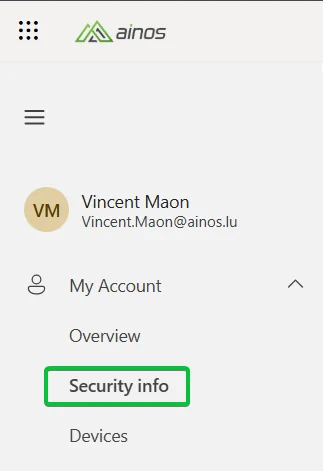
This screen lists all the active methods on your account. For each method, depending on the case, you have a Change and/or Delete button. The + Add sign-in method button at the top of the list lets you register a new method.

Available methods
Several types of methods can coexist on your account. Here are the main ones found at Ainos:
📱 Phone
A mobile number where you receive an SMS or call with a verification code. It's a handy backup method, but less secure than an authenticator app. Use Change to update the number and Delete to remove it.
🔑 Password
Your account password. The row shows the last change date (Last updated). The Change button takes you to the password change wizard. The password can't be deleted: it remains the base of your identity.
🛡️ Microsoft Authenticator (MFA)
The Microsoft Authenticator app installed on your smartphone gets an approval notification (push) or generates a one-time code at every sign-in. It's the strong authentication method recommended by Ainos. The registered phone model name appears next to it (e.g. SM-S938B).
🔓 Passkey (security key)
A passkey lets you sign in without a password, using biometrics (fingerprint, face recognition), a PIN, or a physical security key. On this account, a passkey linked to a Yubikey-type device is registered. It's the method most resistant to phishing.
Click + Add sign-in method at the top of the list. A window then lets you choose the type of method to register, and guides you step by step through the setup.

The options offered may include:
- Passkey in Microsoft Authenticator — a passkey stored in the Authenticator app (face, fingerprint, PIN).
- Passkey — a passkey via biometrics, PIN, or a physical security key.
- Microsoft Authenticator — sign-in approval via notification or one-time codes.
- Hardware token — a hardware token generating a code.
- Office phone — a call received on your professional landline.
- Email — receiving a code to reset your password (reset only, not for sign-in).
Select the desired method and follow the on-screen instructions (scanning a QR code, entering a number, registering the key, etc.). Once verification succeeds, the new method appears immediately in the list.
For each listed method:
- Change — click Change to the right of the relevant row (for example to change a phone number or password), then follow the wizard.
- Remove — click Delete to the right of the row, then confirm. The method is removed from your account immediately.
Securing your sign-in — MFA · Passkey · SSPR
Everything that protects your sign-in, in one place: multi-factor authentication (MFA, mandatory), passwordless sign-in (Passkey & FIDO), and self-service password reset (SSPR). Registering your security methods once powers all three.
💡 Your security methods are registered once and serve all three uses: MFA sign-in, passkey, and password reset.
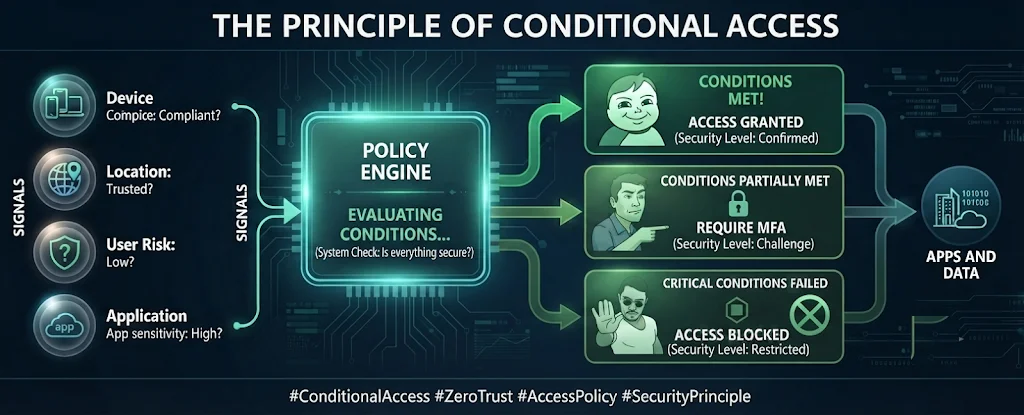
Microsoft Entra ID conditional access analyzes several signals in real time (user, device, application, risk) and decides to allow, require MFA, or block access.
📲 Authenticator recommended
The safest and fastest method: a notification to approve on your phone.
🔢 Number matching
Enter the number shown on screen into the app — this prevents accidental approvals.
🛟 Keep a backup method
Register at least two methods (e.g. Authenticator + phone) so you're never locked out.

On first sign-in, or when the conditional access policy requires it, the "More information required" screen appears. Click Next to register an MFA method.
On first sign-in, the guided "Keep your account secure" wizard walks you step by step through registering Microsoft Authenticator.


myaccount.microsoft.com → Security info → + Add method and select Microsoft Authenticator.| Method | Type | Phishing resistance | Recommended |
|---|---|---|---|
| Microsoft Authenticator (push) | Mobile app | Partial | Yes |
| Passkey (FIDO2) | Biometrics / hardware key | Full | Yes ★ |
| TOTP code (Authenticator) | One-time code | Partial | Backup |
| SMS | Text | Low | Last resort |
- Set up two-step verification (aka.ms/mfasetup)aka.ms/mfasetup
- Number matching & authentication method protectionlearn.microsoft.com
- Combined security info registrationaka.ms/setupsecurityinfo


Conditional access — why these checks?
When you sign in to your Microsoft 365 tools, a security "gatekeeper" quietly checks your sign-in. Most of the time you won't notice a thing. Sometimes it asks for extra proof. Here's why — and what to do.
At every sign-in, several signals are analyzed (who you are, your device, your location, the risk detected). Depending on the result, access is allowed, subject to additional verification (MFA), or blocked — before it even reaches your apps and data.
2-step verification (MFA) for everyone
At sign-in, a confirmation via Microsoft Authenticator (or a passkey) proves it's really you. It's the most effective protection against password theft.
Extra verification outside the office
From an unusual network or location (outside the office or VPN), an additional MFA check may be requested. This also applies to external guests collaborating with Ainos.
Sign-ins from certain countries blocked
Sign-in attempts from countries where Ainos doesn't operate are automatically blocked. Before a business trip, notify IT to avoid getting blocked.
Only modern apps are allowed
Legacy protocols (legacy authentication, ActiveSync) are blocked : they can't handle MFA. Use up-to-date Microsoft apps such as Outlook and Teams.
Automatic response to suspicious activity
If a sign-in looks risky (password found in a breach, unusual behavior), the system requires a new verification, or even a password change (SSPR). It's a protection, not a punishment.
Verification when adding a device
Registering a new device in the company directory requires an MFA check. That way, no one else can attach their own device to your account (enrollment).
Here are the most common situations and what to do in each case.
A prompt in Microsoft Authenticator
You're asked to approve a notification or enter a code. This is MFA : it confirms it's really you. Only approve if you just signed in. Details: Password — MFA.
A PIN in Outlook or Teams
On a personal phone, Microsoft apps ask for a PIN (or your fingerprint / Face ID). It only protects your work data, never your personal data. See BYOD (MAM).
Your mail app won't connect anymore
Only modern apps (Outlook, Teams…) are allowed. Old mail clients (IMAP/POP, a misconfigured "Mail" app) are blocked for security reasons. Fix: use Outlook mobile.
Access blocked abroad
Sign-ins from certain countries are restricted. If you're going on a business trip, notify IT in advance to avoid getting blocked.
"Non-compliant device"
The device must meet a few rules (lock code, up-to-date system, not "jailbroken"). Fix the reported item then try again, or enroll the device: Company Portal.
- What is Conditional Access? (Microsoft Entra)learn.microsoft.com
Connecting to servers: NTLM turned off
On Ainos Windows PCs, the old NTLM sign-in protocol is blocked: your access to servers goes through Kerberos, which is safer. What it changes for you, and what to do if an old server stops responding.

What is set on your PC
| Connection | What happens |
|---|---|
| Your PC connects to a server (file share, internal application) | NTLM is blocked: the connection goes through Kerberos. Only servers that IT has placed in the exceptions still accept NTLM. |
| Another device connects to your PC | NTLM is blocked. |
| The oldest versions (LM, NTLMv1) | Refused everywhere, including for servers in the exceptions. |
- A network share or an old business application keeps asking for your username and password, or shows Access denied.
- A share opened by its IP address (for example
\\10.0.0.5\share) no longer opens, while it opens by its name. - An old printer, scanner or NAS refuses the connection.
\\server-name.domain\share), not by its IP address: Kerberos needs the name.An exception allows NTLM to one specific server, only when it can't work any other way. It isn't permanent: the aim remains to move that server to Kerberos.
- Every exception is automatically documented: the server, the date it entered the exceptions and the person who requested it.
- After 6 months, IT asks you to confirm it is still needed.
- The list of servers in the exceptions is not published.
When Windows blocks something
A program that won't start, a macro that stops, a file that won't save to your Documents: these are often the Microsoft Defender protections on your PC. What the messages mean, and what to do.

The messages you may see
| On screen | What happened | What to do |
|---|---|---|
| A Windows Security message saying your IT administrator blocked the action | A protection rule stopped a dangerous behavior: a macro launching a program, an executable attachment, a program on a USB stick… | See A program is blocked: what to do? |
| “Unauthorized changes blocked”, or a Controlled folder access message | An unknown program tried to change a file in your protected folders (Documents, Pictures…). | Office, OneDrive and most well-known programs are recognized automatically. Another program blocked? See what to do. |
| A Windows Security message reporting threats, or a file quarantined | Defender isolated a dangerous file. | Don't try to recover it. Not sure (a file you expected from a client, for example)? Tell IT. |
| No message: an application receives no connection | The firewall refuses connections coming in to your PC. | See The firewall. |
| “Your account is temporarily locked…” or “The referenced account is currently locked out…” | Too many wrong passwords in a row. | See Account locked. |
| What is blocked | Example of what you might see |
|---|---|
| Office: an Office application launching another program, creating an executable file, injecting code into another program, or a macro calling Windows directly (unless IT has approved an exception) | A macro in a document you received stops with the Windows Security message. |
| Attachments: a program or script received by e-mail (Outlook or webmail) won't run | An .exe or .js attachment won't open. |
| Scripts: a JavaScript or VBScript script can't launch a downloaded program | A .js or .vbs file (often inside a .zip you received) can't launch the program it downloaded. |
| USB stick: an unsigned or unknown program run from a USB stick is blocked | An unknown tool copied to a stick may not run. Your documents on the stick stay readable. |
| Adobe Reader: it can't launch other programs | A malicious PDF can't start anything. |
| Ransomware: a program behaving like ransomware, or a disguised copy of a Windows tool, is blocked | Rare: a recent or little-known program may be blocked as a precaution. |
| Protections invisible day to day: vulnerable drivers, password theft from memory, forced restart in safe mode, remote program launch | Nothing, except for a very specific technical tool. |
Controlled folder access protects Documents, Pictures, Videos, Music and Favorites, including when they are backed up to OneDrive. Only trusted programs can save, change or delete files there: ransomware that tries to encrypt them is blocked.
- Most well-known programs (Office, OneDrive, Teams…) are recognized automatically.
- An unknown program (a recent tool, a rare business application) may be blocked: you see “Unauthorized changes blocked”. Save to another OneDrive folder instead (not Documents or Pictures).
- The history of blocks is in Windows Security → Virus & threat protection → Protection history.
After 10 wrong passwords, your account is temporarily blocked: this is what stops an attacker trying to guess your password.
- Wait a few minutes: the block lifts on its own, but it lasts longer after each new mistake. Before trying again, check Caps Lock and the keyboard language.
- Forgot your password? Reset it yourself: MFA · Passkey · SSPR. This also lifts the block straight away.
- Locked without typing anything? A device (phone, tablet) may still hold your old password, or someone may be trying your account: tell IT.
With Windows Hello (PIN or face), this counter doesn't apply: the PIN has its own protection. See Windows Hello (PC).
The Windows firewall is on for every network (office, home, public Wi-Fi) and refuses connections that come in to your PC (except those IT has allowed), without showing a message. Internet, Teams, Outlook and OneDrive are not affected: those connections go out from your PC.
An application that needs to receive connections (a copier dropping a scan into a folder on your PC, a tool running locally) may therefore fail without explanation. If it is a business application, IT can allow it.
A program is blocked: what to do?
| What is blocked | What to do |
|---|---|
| A personal tool, software found on the Internet, a suspicious file to examine | No exception. Test it in a Hyper-V virtual machine: an isolated PC inside your PC, which you manage and are responsible for. |
| A business application you need for your work (a client's tool, a company application) | Ask IT to allow it, below. |
Getting a business application allowed
Testing a tool or a file in a virtual machine
A personal tool, software found on the Internet or a suspicious file is blocked on your PC? No exception is granted: test it in a Hyper-V virtual machine, an isolated PC inside your PC. How to create it, and the rules to follow.
The rules to follow
| Rule | Why |
|---|---|
| No Ainos data in the VM: don't sign in with your Ainos account, no Outlook, Teams or OneDrive, no client files | Nothing in the VM is protected or backed up. |
| Don't enroll the VM in Intune or join it to Entra ID | It would become a non-compliant Ainos device with access to company resources. |
| Two uses, two VMs: a VM-API connected to the Default Switch to test a tool or an API, and a VM-Quarantine with the network Not connected to open a suspicious file. Never an external switch | When connected, the VM goes out through your PC's connection and can reach the Ainos network: a malicious file opened in a connected VM would take advantage of it. |
| In the VM-API, test access only: test API keys, accounts and data sets, never a production secret or real client data | What goes into the VM is neither protected nor backed up, and the tool under test may compromise the VM. |
| Basic session for a suspicious file: turn off enhanced session mode | It shares your PC's clipboard (including files) and printers with the VM, and can give access to your drives. |
| A “clean” checkpoint before each test, and go back to it afterwards | You start from a healthy VM every time: nothing you tested remains. |
VM files in C:\VMs, never in Documents or on the Desktop | Those folders sync with OneDrive: a virtual disk of tens of GB would be uploaded. |
| Delete the VM as soon as you no longer need it | A forgotten VM no longer gets updates. |
Hyper-V is built into Windows: nothing to download. Open PowerShell as administrator (right-click → Run as administrator), then:
Enable-WindowsOptionalFeature -Online -FeatureName Microsoft-Hyper-V -AllAnswer Y to restart. After the restart, Hyper-V Manager appears in the Start menu.
Without PowerShell: type features in the taskbar search → Turn Windows features on or off → tick Hyper-V → OK, then restart.


If the command fails, note the full error message and contact IT.
Use the Windows 11 Enterprise evaluation, free and legal for testing, valid for 90 days, with no product key: Microsoft Evaluation Center → Windows 11 Enterprise (not LTSC) → fill in the registration form → 64-bit (x64) ISO (Arm64 only if your PC has a Snapdragon processor), any language.
- First create the folder, in an administrator PowerShell:
New-Item -ItemType Directory -Path "C:\VMs\ISO" -Force, then save the ISO there. - Never download Windows from anywhere other than a Microsoft site.
- After 90 days, delete the VM and create a new one: an expired evaluation shuts down every hour.
If you have your own Windows 11 product key, you can also take the standard ISO from the Windows 11 download page → Download Windows 11 Disk Image (ISO) for x64 devices. Without a key, Windows stays unactivated: use the evaluation instead.

In an administrator PowerShell, adjust the ISO path, then paste:
$vm = "VM-Quarantine"
$iso = "C:\VMs\ISO\Windows11-Evaluation.iso"
New-Item -ItemType Directory -Path "C:\VMs" -Force | Out-Null
New-VM -Name $vm -Generation 2 -MemoryStartupBytes 4GB -Path "C:\VMs" -NewVHDPath "C:\VMs\$vm\$vm.vhdx" -NewVHDSizeBytes 64GB
Set-VMProcessor -VMName $vm -Count 2
Set-VMKeyProtector -VMName $vm -NewLocalKeyProtector
Enable-VMTPM -VMName $vm
Add-VMDvdDrive -VMName $vm -Path $iso
Set-VMFirmware -VMName $vm -FirstBootDevice (Get-VMDvdDrive -VMName $vm)
Set-VMHost -EnableEnhancedSessionMode $false
vmconnect.exe localhost $vm
Start-VM -Name $vmWhat these lines do: a generation 2 VM with 4 GB of memory, 2 processors and a 64 GB disk in C:\VMs, secure boot and a virtual TPM (required by Windows 11), no network, and enhanced session mode turned off (for all VMs on the PC). The VM window opens, then the VM starts: press a key right away to boot from the ISO. If you miss it, use Action → Reset, then press a key. Install Windows with a local account, never your Ainos account or a personal Microsoft account.
Create both VMs: run the script once as is (VM-Quarantine, no network), then a second time with $vm = "VM-API", and connect the latter:
Connect-VMNetworkAdapter -VMName "VM-API" -SwitchName "Default Switch"Without PowerShell: Hyper-V Manager → New → Virtual Machine: tick Store the virtual machine in a different location and enter C:\VMs; generation 2, 4096 MB, network Not connected, 64 GB disk in C:\VMs, the ISO. Then Settings → Processor: 2 virtual processors; Security: tick Enable Secure Boot and Enable Trusted Platform Module.


C:\VMs.


C:\VMs\ + the VM name, and the size with 64 GB.
C:\VMs\ISO.Before starting the VM, set what the wizard doesn't:


All the commands below run in an administrator PowerShell.
Connect-VMNetworkAdapter -VMName "VM-Quarantine" -SwitchName "Default Switch"
# … activation and updates inside the VM, then:
Disconnect-VMNetworkAdapter -VMName "VM-Quarantine"Checkpoint-VM -Name "VM-Quarantine" -SnapshotName "Clean", and the same for the VM-API.A suspicious file already on your PC (an attachment, for example): in the VM-Quarantine, use a small transfer disk:
Stop-VM -Name "VM-Quarantine"
New-VHD -Path "C:\VMs\transfer.vhdx" -SizeBytes 2GB -Dynamic
Mount-VHD "C:\VMs\transfer.vhdx" -Passthru | Initialize-Disk -Passthru | New-Partition -AssignDriveLetter -UseMaximumSize | Format-Volume -FileSystem NTFS -Confirm:$false
# if File Explorer offers to format the disk: Cancel.
# copy the file to the new drive that appears, then:
Dismount-VHD "C:\VMs\transfer.vhdx"
Add-VMHardDiskDrive -VMName "VM-Quarantine" -Path "C:\VMs\transfer.vhdx"
Start-VM -Name "VM-Quarantine"Restore-VMSnapshot -VMName "VM-Quarantine" -Name "Clean" -Confirm:$false. The VM is then turned off and the transfer disk detached.After the test, delete the transfer disk (C:\VMs\transfer.vhdx) without reopening it on your PC: it may have been changed inside the VM.
Delete a VM when you no longer need it: Stop-VM -Name "VM-Quarantine" -TurnOff, then Remove-VM -Name "VM-Quarantine" -Force, then delete the C:\VMs\VM-Quarantine folder (if a file is "in use", wait a few minutes).
Frequently Asked Questions
Quick answers to the most common questions. Can't find yours? Use the search box at the top left or contact IT support.
Sign-in & password
📱 Phone & devices
Collaboration
Security & access
Security & phishing
Most attacks start with a simple email. A few good reflexes are enough to protect your account and the company. Here are the essentials.
Modern attacks are not always just a fake link: some hijack legitimate Microsoft mechanisms. Here is a common example, device code phishing, from the first email to the theft of the tokens.

A sense of urgency
“Your account will be closed in 24h”, “Action required immediately”. Urgency is there to make you act without thinking.
Suspicious links or senders
Hover over the link without clicking: the real address does not match. The sender imitates a known name with an odd domain.
An unexpected attachment
An invoice, CV or delivery note you were not expecting. Never open an attachment from a stranger.
You are asked for your credentials
Microsoft, your bank or IT will never ask for your password by email.
| Scam type | Warning sign | The right response |
|---|---|---|
| Credential phishing | “Microsoft” sign-in page received via a link, URL that does not end in an official Microsoft domain | Do not enter your password; open the service from a known favorite, not the link |
| CEO / invoice fraud | Urgent request for a transfer or an IBAN change, “confidential”, pressure from above | Verify via a 2nd channel (phone, in person) before any financial action |
| Malicious attachment | Unexpected file (invoice, CV, .zip, .html) asking you to “enable macros” | Do not open; report the message; ask the sender to confirm via another channel |
| Fake support / IT | “Your account is compromised”, you are asked for your credentials or an MFA code | IT never asks for your password or an MFA code; refuse and alert support |
| Smishing (SMS) / Quishing (QR code) | Delivery/bank SMS with a short link, QR code received by email | Do not click/scan; check directly on the organization's official website |
- Verify the sender through a trusted channel (directory, phone) rather than the contact details in the email.
- Never reuse your work password anywhere else.
- Keep MFA on: it's your best safety net (MFA).
- An MFA prompt you did not trigger? Deny it and tell IT.
- Protect yourself from phishing and online scamssupport.microsoft.com
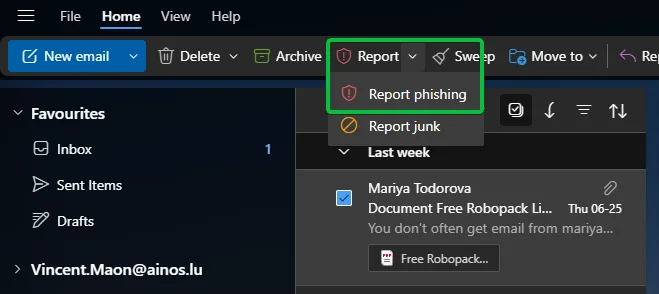
- Report a message with the Report button in Outlooklearn.microsoft.com
Updates & Compliance
Keeping your device updated and compliant is the simplest and most effective security step. Here's why, and what Intune does for you.
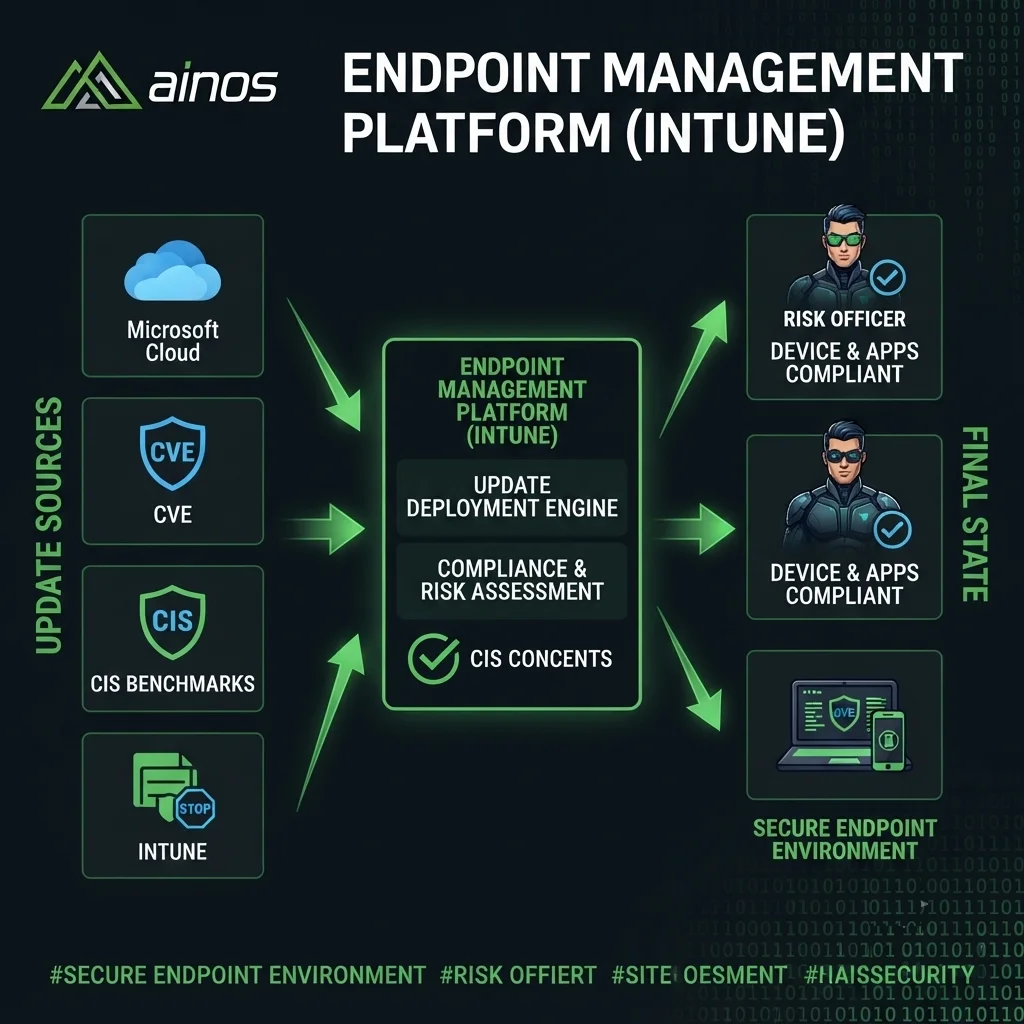
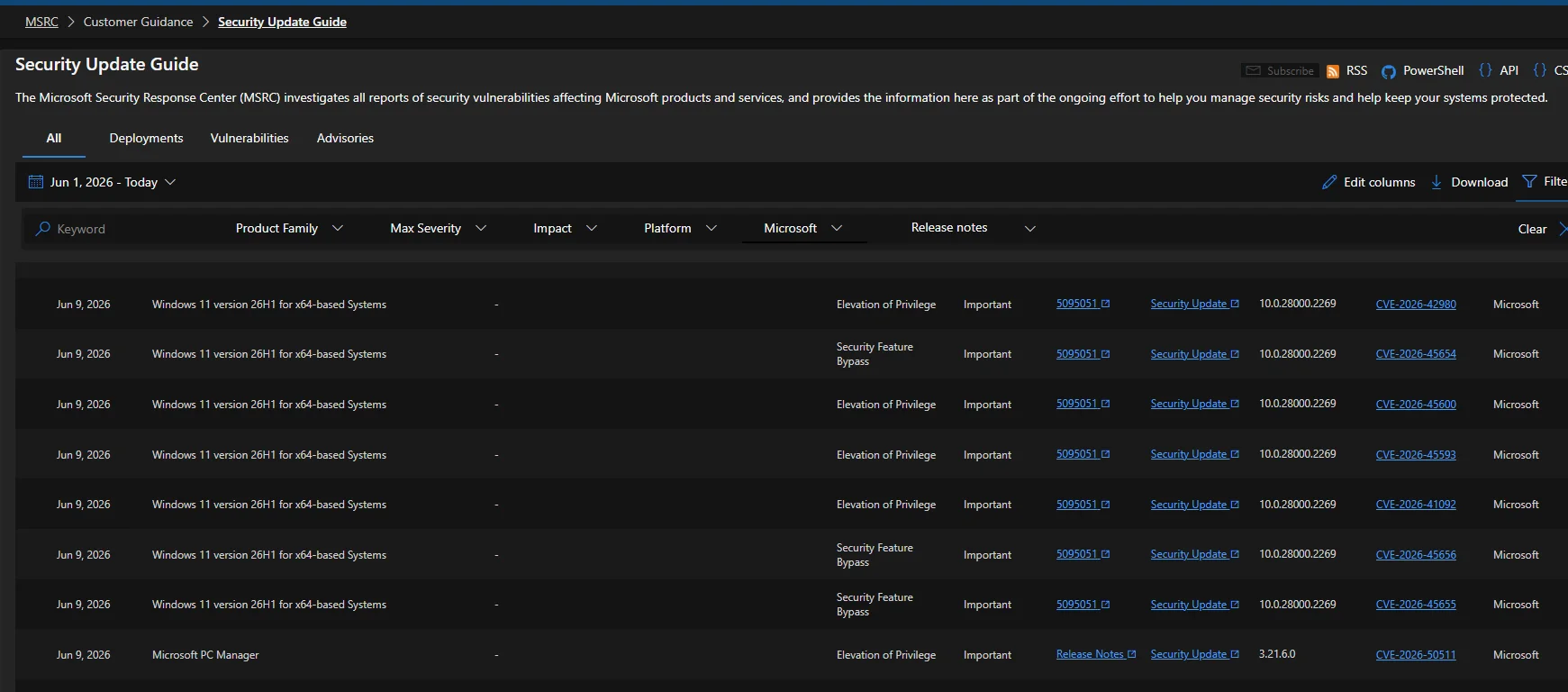
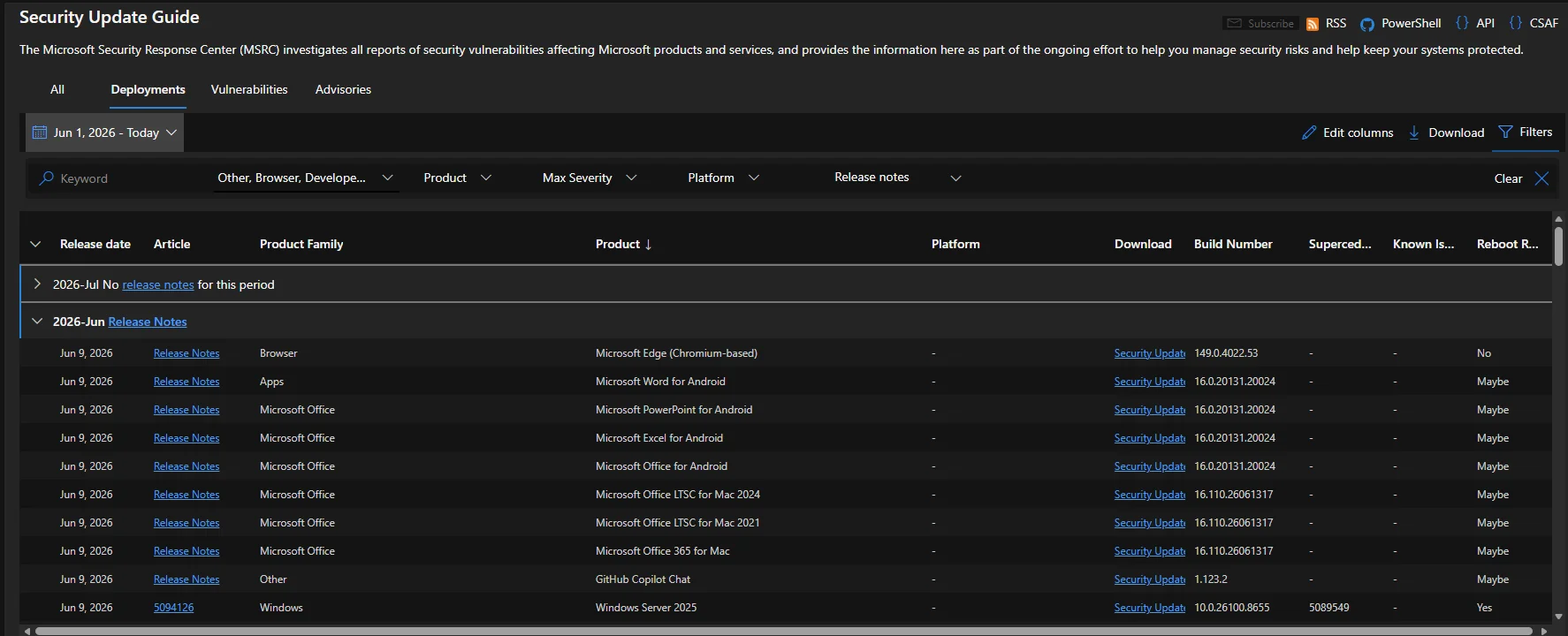
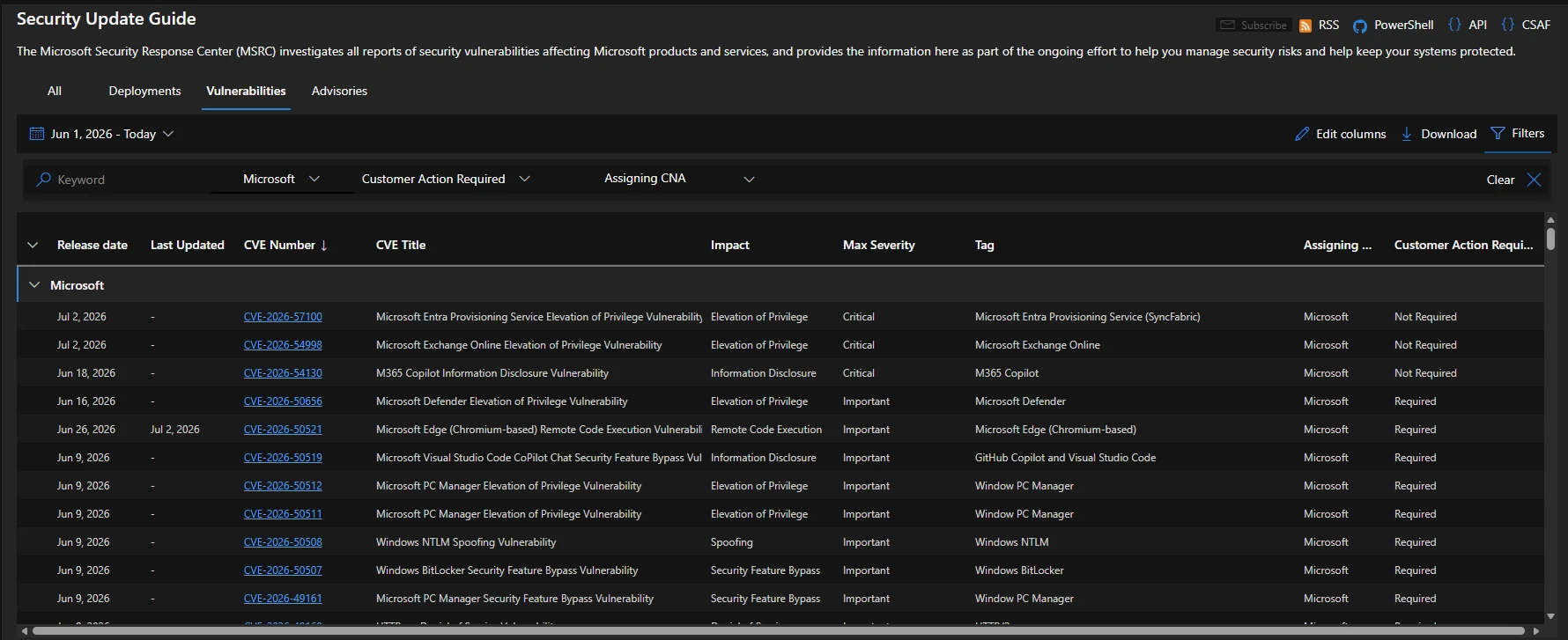
Every month — the famous "Patch Tuesday" (2nd Tuesday of the month) — Microsoft releases fixes for Windows, Office, Edge and its other products. Every fixed flaw is publicly listed in the Security Update Guide (MSRC), with its severity and affected systems.
Automatic updates
Windows Update is managed by Intune: fixes download and install on their own, no action needed from you.
Restart when asked
A fix is only active after a restart. Save your work and restart your PC as soon as possible.
Don't postpone indefinitely
Past a grace period, a restart can be forced to protect the whole company.
🏬 Install via official channels
Company Portal or Microsoft Store only. An installer found elsewhere can be booby-trapped.
🧩 Office & Edge auto-update
They update themselves in the background: no need to look for a new version.
🛡️ Trusted apps only
Smart App Control blocks unrecognized or unsigned applications before they're even installed.
Your Ainos PC combines several layers of protection, always active in the background.

🪪 Identity
Passwordless sign-in (Windows Hello, Passkey) and advanced credential protection.

📋 Applications
Smart App Control and isolation (Sandbox, containers) limit what an app can do, even if compromised.

💻 System
BitLocker (disk encryption), Microsoft Defender (antivirus) and firewall protect the device and your data, even if stolen.
Intune continuously checks that a device follows company rules: active encryption, a lock code set, an up-to-date Windows version, an unmodified device (no jailbreak/root). A compliant device gets access to work resources; a device that no longer is can have its access reduced, via conditional access.
🔁 Restart without delay
As soon as an update requires it, restart at the first convenient opportunity.
🚫 Don't disable anything
Defender, BitLocker and the firewall must stay active: never disable them, even "temporarily".
🏬 Official sources only
Company Portal or Store for any new application.
⚠️ Device flagged "non-compliant"?
Contact IT quickly to avoid losing access.
- Security Update Guide (MSRC)msrc.microsoft.com
- Manage updates with Windows Update for Businesslearn.microsoft.com
- Device compliance policies in Intunelearn.microsoft.com
- Smart App Control and application controllearn.microsoft.com
Copilot — your AI assistant
Copilot is the intelligent assistant built into Microsoft 365. It helps you write, summarize, find information, or prepare for a meeting — directly inside Word, Outlook, Teams, and the other apps you already use.
What Copilot can do for you
Draft
An email draft, meeting minutes, a document outline.
Summarize
A long email thread, a document, a Teams meeting.
Find
Information across your files and messages, in plain language.
Brainstorm
Ideas, an action list, a presentation outline.
| Application | Example use |
|---|---|
| Outlook | “Summarize this thread” · “Draft a polite reply to decline” |
| Teams | During/after a meeting: “What was decided and who’s doing what?” |
| Word | “Draft a memo about…” then adjust the tone |
| Excel | “Highlight the rows that concern me” · spotting trends |
| Copilot Chat | On m365.cloud.microsoft: ask a question about your documents |
At Ainos, you’ll come across two experiences: both sign in with your work account firstname.lastname@ainos.lu and both benefit from Enterprise Data Protection (EDP).
| Microsoft 365 Copilot Chat | Microsoft 365 Copilot | |
|---|---|---|
| Availability | Included with the Microsoft 365 subscription | Dedicated license (assigned by IT) |
| Sources | Grounded on the web (Bing search) | Web + your work data (emails, files, chats via Microsoft Graph) |
| Internal data | Only if you provide it (attached file, “/”, Outlook, agent) | Semantic index access to everything you already have rights to |
| Protection | EDP | EDP |
@ainos.lu account.Attach a file
The “+” button or drag & drop (Word, Excel, PDF…) to summarize or analyze it. The file is stored in your OneDrive.
Images
Generate an image from a description, or upload a photo to discuss it.
Copilot Pages
Turn a response into an editable canvas you can share with others.
History
Find and pick up your previous conversations.
Data analysis
The code interpreter (Python) for calculations, charts, and visualizations.
Voice
Dictate your prompts and have responses read aloud.
A good prompt generally has 4 ingredients: a goal, some context, a source, and the expected format.
A few useful prompts
- “Summarize the key points and action items in this document.”
- “Which unread emails need a reply today?”
- “Prepare an agenda for a 30-minute meeting about…”
- “Rephrase this message to be more concise and professional.”
In the Microsoft Edge business browser, Copilot Chat is available in a side pane, handy for working on the page you’re viewing.
- Open it: the Copilot icon in the top-right of the browser (shortcut
Ctrl+Shift+.), after signing in with your@ainos.luaccount. - Summarize a page: ask for a summary of the open web page or a displayed PDF.
- Context: page content is only shared with your consent (“Allow access to this page”), for more relevant answers.
How it works, in 5 steps
- Prompt — your request goes to the Copilot orchestrator, which coordinates Responsible AI controls and logs the exchange.
- Web grounding — if web search is enabled, only a few keywords are sent to Bing over a secure connection.
- Model (LLM) — the grounded prompt is sent to the large language model to draft the response.
- Logging — the prompt and response are recorded in your tenant (Exchange) for audit / eDiscovery.
- Response — after a final security check, the response is returned to you.
Your prompts and responses are not used to train foundation models and are not shared with OpenAI. Copilot supports GDPR; for the European Union, traffic stays within the EU Data Boundary (EUDB) — except for search queries sent to Bing.
- Write effective prompts for Copilot (training)learn.microsoft.com
- Copilot prompt gallerym365.cloud.microsoft
- Copilot Chat frequently asked questionslearn.microsoft.com
- Copilot Chat in Microsoft Edgelearn.microsoft.com
- Privacy and protections (architecture)learn.microsoft.com
Windows Hello — unlock your PC
Windows Hello lets you sign in to your work PC with your face, your fingerprint, or a PIN — without typing your password. It's faster and much more secure.
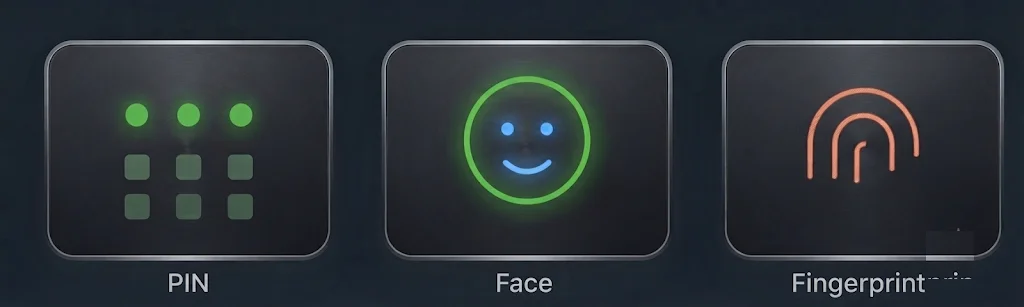
📌 Your PIN stays on the device
Unlike a password, the PIN is tied to this PC: it never travels over the network, so it's useless to a remote attacker.
😊 Biometrics are optional
Face and fingerprint speed up sign-in, but the PIN remains your fallback if recognition fails.
🔁 Independent from your password
Windows Hello keeps working even after a password change on the account.
🔒 Built-in protection
After several incorrect PIN attempts, the device locks (protection against repeated attempts).
At startup, look at the camera or place your finger on the scanner — you're signed in. No password to remember. Even if you change your password, Windows Hello keeps working.
On the sign-in screen, click “I forgot my PIN”: after an MFA check, you'll be able to create a new one, with no reinstall needed. For the account password, see SSPR.
| Symptom | Likely cause | Solution |
|---|---|---|
| “Windows Hello unavailable” / greyed-out option | Policy still being applied, or PC not yet registered in Entra ID | Restart, wait for setup to finish, then try again in Sign-in options. If it persists, contact IT |
| The fingerprint reader doesn't respond | Missing driver or unregistered finger | Re-register your fingerprint (Settings → Sign-in options → Fingerprint), clean the sensor, update Windows |
| Facial recognition fails | Insufficient lighting, IR camera obstructed | Improve lighting, clear the camera, use “Improve recognition”; the PIN remains your fallback |
| PIN rejected after several attempts | Protective lockout after incorrect attempts | Wait out the displayed delay, then use “I forgot my PIN” to reset it (MFA check) |
| The PIN stops working after an incident | Security component (TPM) reset | Recreate the PIN via “I forgot my PIN”; no reinstall needed |
- Set up Windows Hellosupport.microsoft.com
I have a new device
Just received a new PC or a new phone? Follow the matching checklist to get up and running quickly and securely.
Ainos work PCs are provisioned with Windows Autopilot and managed by Microsoft Intune. In practice: you unbox the device, sign in with your Ainos account, and everything configures itself — no manual installation.
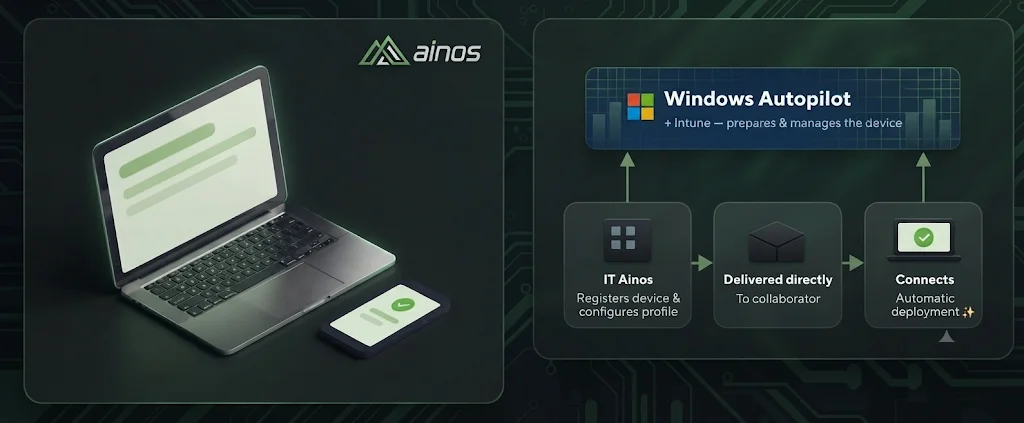
surname.name@ainos.lu and approve the MFA prompt. The device is then recognized by Windows Autopilot.Contact IT support
A question, stuck on something? Here's how to get help quickly. First, check the FAQ — many issues are solved there in a minute.
Before you contact us
- Check the FAQ.
- Forgot your password? Use self-service (SSPR).
- Note down the exact error message and roughly when it happened.
How to reach us


Chat with internal IT
A quick question, something to clarify, or a small nudge in the right direction? Message us directly on Teams — it’s often sorted in a few minutes, no form needed. For anything bigger, please use the form above instead.
Describe your issue clearly
- What you're trying to do
- What happens (error message, screenshot)
- Since when
- The device involved (PC / phone, personal / work)
Glossary — terms explained
The acronyms and technical words you'll come across in the wiki, explained simply.
Accounts & sign-in
| MFA | Multi-factor authentication: a 2nd proof of identity in addition to the password (e.g. approving in Authenticator). → MFA |
| SSPR | Self-Service Password Reset: resetting your own password without IT. → SSPR |
| Passkey / FIDO2 | Passwordless sign-in via fingerprint, face or a security key. → Passkey |
| Authenticator | The Microsoft app that validates your sign-ins (notifications, codes). |
| Conditional Access | Rules that check every sign-in (device, location, risk). → Learn more |
| Entra ID | Microsoft's identity directory (formerly "Azure AD") that manages your Ainos accounts and sign-ins. |
| SSO | Single Sign-On: one authentication grants access to all your work applications, without re-entering your password. |
| Zero Trust | Principle of "never trust by default": every access is verified (identity, device, context). → Conditional access |
Devices 
| BYOD | Bring Your Own Device: using your personal device for work. → BYOD |
| MDM | Device management (full enrollment via Company Portal). → Company Portal |
| Intune | The Microsoft service that manages the organization's devices and apps (security policies, deployment, compliance). → Company Portal |
| MAM | Managing only the work apps (BYOD mode), without controlling the phone. |
| Conteneur | An isolated work space on your device: your personal and work data never mix. |
| Compliance | "In good standing" state for a device (lock code, system up to date…) required to access resources. |
| Company Portal | The app used to enroll and manage a device, and to install work apps. |
| Windows Autopilot | The service that automatically pre-configures a new PC the first time it signs in, with no manual setup. → New device |
| BitLocker | Hard drive encryption: without your credentials, its contents are unreadable, even if the device is lost or stolen. → Laptop |
| Windows Hello | Signing in to a PC with a PIN, face, or fingerprint, without typing a password. → Windows Hello |
| LAPS | Local Admin Password Solution: a PC's local administrator password, generated and rotated automatically by Intune. → Laptop |
Services
| OneDrive | Your personal work files in the cloud. → OneDrive |
| SharePoint | Team sites and shared files. → Teams & SharePoint |
| Tenant | Ainos's "Microsoft 365 space" (your accounts, data and policies). |
| Copilot | The AI assistant built into the Microsoft 365 apps. → Copilot |
| Phishing | A fraudulent email that tries to steal your information. → Security |
| Microsoft 365 | Ainos's cloud suite: Outlook, Teams, OneDrive, SharePoint, Office and their services. |
| Teams | Meetings, calls and team chat. → Teams |